keplertech

Blogs

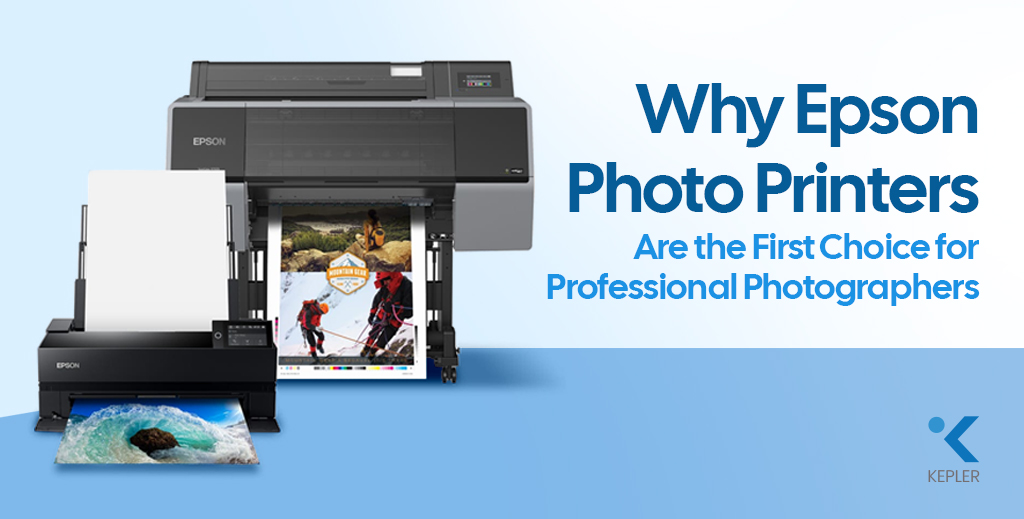
Why Epson Photo Printers Are the First Choice for Professional Photographers
Photo printer

Why Epson Photo Printers Are the First Choice for Professional Photographers

Professional photography has transformed from a niche creative field into a thriving global industry. Weddings are grander, commercial campaigns are more visually demanding, and fine art photography is gaining unprecedented recognition. Clients no longer want “good” prints; they expect gallery-quality pieces that preserve every detail, every shade, and every emotion. But let’s pause and reflect on something important. You may invest heavily in cameras and lenses, carefully edit your images, and perfect every color tone on screen. Yet, what ultimately reaches your client’s hands is not a digital file; it is a print. And that final output depends entirely on your Photo Printer. Before choosing a printer, every professional should ask: This is where Epson has established itself as an undisputed leader. Across studios, galleries, and commercial production houses, Epson professional photo printers are trusted for their precision, longevity, and color brilliance. Epson photo printers combine advanced ink technology, engineering reliability, and scalable performance, making them the preferred choice for professionals seeking the Best Printer for Photographers. What Professional Photographers Truly Expect from a Photo Printer Professional photographers do not choose equipment casually. Every investment must justify itself in performance and business value. First and foremost, color accuracy is essential. A portrait photographer cannot afford unnatural skin tones. A landscape artist cannot tolerate muted blues or crushed shadows. The print must faithfully replicate the creative vision crafted during editing. Longevity is equally critical. When a wedding client receives an album, they expect those memories to remain vibrant for decades. Fine art collectors demand archival-quality prints that can withstand time and light exposure. Media flexibility also plays a major role. Professionals regularly work with matte photo paper for soft artistic depth, glossy photo paper for vibrant commercial visuals, textured fine art sheets for exhibitions, and even canvas for wall displays. A capable Photo Printer must handle all of these seamlessly. Large-format capability, consistent output across batches, and cost control are also central to a studio’s workflow. These expectations define the benchmark — and Epson consistently exceeds it. Epson’s Advanced Print Technology: The Engineering Advantage The reason Epson dominates the world of professional photo printers lies in its proprietary technology. Unlike many thermal inkjet competitors, Epson uses Micro Piezo printhead technology. This mechanical precision system controls ink droplet size without heat, ensuring exceptional accuracy and long-term reliability. The result is sharper detail, smoother gradation, and consistent droplet placement across every print. Epson’s pigment-based UltraChrome ink systems further elevate output quality. These inks expand the color gamut significantly, producing richer blacks, smoother tonal transitions, and deeper color intensity. Whether printing on matte photo paper or glossy photo paper, the vibrancy remains intact. Resolution also matters. Many Epson Photo Printer models deliver ultra-high DPI output, ensuring fine textures, hair details in portraits, and subtle highlight transitions are preserved with remarkable clarity. For professionals who refuse to compromise, this technological precision becomes a decisive factor. Color Accuracy & Print Consistency: Where Epson Excels Color is not just a feature in photography; it is the language of emotion. Epson printers integrate seamlessly with ICC profiles and professional calibration systems, ensuring what you see on screen translates accurately onto Photo Printing Paper. For wedding studios printing hundreds of images from a single event, consistency across batches is crucial. Epson printers maintain tonal uniformity and color balance across repeated runs, preserving brand credibility. Shadow depth remains controlled. Highlights retain subtle detail. Skin tones appear natural rather than artificial. These characteristics distinguish Epson from standard photo printers designed for casual use. Epson vs Other Photo Printer Brands To better understand why Epson is often considered the Best Printer for Photographers, let’s compare it with other major photo printer brands in the professional segment. Key Factor Epson Professional Photo Printers Other Major Photo Printer Brands Print Technology Micro Piezo technology (heat-free precision droplet control) Mostly thermal inkjet systems Ink System Advanced pigment-based UltraChrome inks Mixed dye or pigment systems Color Gamut Wide color gamut with rich blacks and smooth gradation Good, but often narrower color depth Archival Longevity Museum-grade durability with strong fade resistance Moderate to high longevity, depending on the model Large Format Options Extensive Epson large-format printer lineup for studio and exhibition use Limited wide-format options in many ranges Media Compatibility Excellent performance on matte photo paper, glossy photo paper, fine art paper, and canvas Compatible, but may require brand-specific media Scalability Suitable for desktop studios to high-volume production Often segmented between entry-level and industrial only Long-Term Reliability Consistent batch output and durable printhead design Varies by model and usage level While several brands produce capable photo printers, Epson consistently stands out in precision engineering, color accuracy, and scalability. For professionals who prioritize archival quality, large-format flexibility, and long-term reliability, Epson remains one of the safest and most performance-driven investments in the industry. Epson Solutions for Different Professionals Different photography niches require tailored solutions, and Epson understands that no two professionals have identical production needs. Wedding and portrait photographers often prefer the Epson SureColor P900 Photo Printer for its vibrant album-quality output, deep blacks, and smooth tonal gradation. It delivers stunning results on glossy photo paper while maintaining subtle skin tones on matte photo paper. Fine art photographers seeking gallery-grade results benefit from the Epson SureColor SC-P700 13″ Photo Printer, known for its exceptional tonal control, shadow retention, and compatibility with textured Photo Printing Paper. Commercial studios and exhibition producers rely on Epson’s wide-format lineup because it offers: This adaptability makes Epson professional photo printers suitable for both boutique studios and high-output production houses. Frequently Asked Questions 1. What is the best Epson printer for professional photography? It depends on print size and production needs. SureColor series models are widely regarded as industry benchmarks due to their pigment ink systems and color precision. 2. Are Epson photo printers suitable for fine art printing? Yes. Epson’s pigment-based systems deliver archival, museum-grade results ideal for exhibitions and collectors. 3. Which paper works best with Epson photo printers? Both matte photo paper and glossy photo paper perform exceptionally well. Epson

Why Epson Photo Printers Are the First Choice for Professional Photographers Read Post »

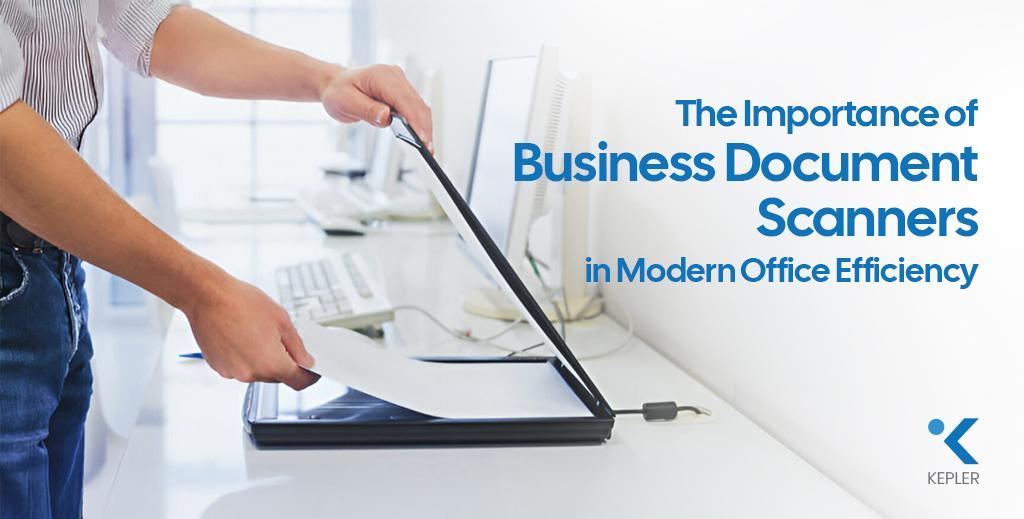
The Importance of Business Document Scanners in Modern Office Efficiency
Document Scanner

The Importance of Business Document Scanners in Modern Office Efficiency

Walk into any modern office today, and you’ll notice one clear shift – businesses are moving rapidly toward digital workflows. Contracts are signed electronically, invoices are stored in cloud systems, and teams collaborate in real time. Yet, many offices still struggle with manual paper processes: misplaced documents, slow approvals, physical storage limitations, and time-consuming data entry. So how do organizations bridge the gap between paper-based processes and digital efficiency? The answer lies in the smart use of a document scanner. From high-speed scanner models designed for busy departments to wireless scanner solutions that support flexible workspaces, modern scanning technology plays a critical role in transforming office productivity. Whether it’s a compact business scanner for small teams or an advanced Epson business scanner built for enterprise workloads, the right solution significantly improves workflow efficiency in modern offices by reducing processing time, enhancing document organization, and lowering operational costs. Let’s explore how. What Is a Document Scanner? Before diving deeper, let’s clarify the basics. A document scanner is a device that converts physical documents into digital files. These files can then be stored, shared, edited, or archived electronically. In modern document management systems, scanners act as the gateway between paper and digital workflows. Today’s business scanner models are designed specifically to handle office documents efficiently, whether in black-and-white or full color. Flatbed Scanner vs Sheetfed Scanner There are two common types used in offices: 1. Flatbed Scanner A flatbed scanner features a glass surface where documents are placed manually. It is ideal for: Many flatbed models also function as high-quality color scanners, making them suitable for scanning brochures, reports, and image-rich materials. For example, an Epson flatbed scanner offers high-resolution output for detailed documents and graphics. 2. Sheetfed Scanner A sheetfed scanner feeds multiple pages automatically through an Automatic Document Feeder (ADF). It is perfect for: Many businesses prefer sheetfed models for their speed and efficiency, especially when combined with duplex scanning. In fast-paced environments, a dedicated business scanner of this type becomes a productivity asset. Both types support different workflows, but choosing the right one depends on office volume and document type. How Document Scanners Improve Workflow Efficiency Now let’s break down exactly how scanners transform daily operations. 1️. Faster Document Processing with High-Speed Scanners Time is money in any business. A high-speed scanner dramatically reduces the time required to digitize documents. Instead of scanning pages one by one, modern scanners can process dozens of pages per minute. For high-volume environments, a heavy-duty office scanner ensures consistent performance without slowing down operations. For example, the Epson WorkForce WF DS-770 II Color Duplex Document Scanner is designed for fast-paced offices. As a powerful color scanner, it delivers sharp, accurate scans for contracts, reports, and marketing materials. It also represents a reliable Epson business scanner solution for organizations that demand both speed and image clarity. Devices like this eliminate bottlenecks in accounting, HR, and administrative departments. 2. Duplex Scanning Saves Time One of the most important features for workflow optimization is duplex scanning. Duplex scanning allows both sides of a document to be scanned simultaneously. Without it, employees must manually flip pages — doubling the time required. Benefits include: In high-volume offices, duplex capability is not optional — it’s essential for any serious business scanner setup. 3. Wireless Connectivity Enhances Flexibility Modern offices demand flexibility. A wireless scanner allows documents to be scanned directly to: For example, the Epson WorkForce WF ES-500WII Wireless Duplex Document Scanner enables seamless wireless connectivity, making it ideal for hybrid and collaborative workspaces. As an Epson business scanner with wireless capability, it supports real-time sharing across departments. A wireless printer scanner setup further enhances shared access and centralized control. Wireless functionality removes cable dependency and supports remote workflow integration. 4. Improved Document Organization with OCR and Digital Archiving Scanning alone isn’t enough — intelligent document organization is key. Many modern scanners include Optical Character Recognition (OCR), which converts scanned text into searchable, editable files. This enables: An A4 scanner is typically sufficient for standard office documents, making it the most practical choice for everyday operations. Whether you’re using a compact business scanner or a heavy-duty model, OCR transforms scanned files into accessible digital assets. By digitizing and indexing documents, offices eliminate clutter and improve information accessibility. 5. Reduced Operational Costs While some businesses focus only on scanner price, they often overlook long-term savings. A document scanner reduces: When evaluating Epson scanner price or overall printer and scanner price, it’s important to consider return on investment rather than just upfront cost. Efficient scanning leads to: Over time, this translates into measurable cost savings, especially when investing in a reliable Epson business scanner built for continuous use. Dedicated Document Scanner vs All-in-One Printer Many offices ask: Should we choose a dedicated document scanner or an all in one printer scanner? Dedicated Document Scanner Best for: A heavy-duty office scanner provides durability and speed for busy departments. For document-heavy organizations, a dedicated business scanner delivers more consistent results than multi-function devices. All-in-One Printer An all in one printer scanner or print scan copy machine combines printing, scanning, and copying. It’s ideal for: An inkjet printer scanner is suitable for low-to-medium volume tasks, while a dedicated scanner is better for document-intensive workflows. If scanning is central to operations, a dedicated Epson document scanner typically offers better reliability and efficiency. Why Epson Document Scanners Are Popular for Modern Offices The brand Epson has built a strong reputation in professional scanning solutions. An Epson Workforce scanner is known for: An Epson high-speed scanner delivers consistent results even under heavy workloads, making it ideal as a long-term business scanner solution. Many Epson models also function as advanced color scanner systems, ensuring accurate reproduction of charts, graphics, and branded documents. Businesses choose Epson because: When comparing options from various scanner suppliers, Epson often stands out for balancing performance and long-term value. Choosing the Right Scanner for Workflow Optimization Selecting the right scanner depends on office needs. A4 Scanner for Standard Use Most offices work primarily

The Importance of Business Document Scanners in Modern Office Efficiency Read Post »

The Hidden Issues with Refurbished Printer Rentals
Printer Rental

The Hidden Issues with Refurbished Printer Rentals

Printer rentals are widely adopted by businesses to reduce capital expenditure and simplify operations. However, when choosing a rental model, many organizations focus mainly on the monthly cost and overlook the condition of the rented equipment. Refurbished printer rentals may appear economical, but they often carry hidden issues that can affect productivity, reliability, and overall business efficiency. Understanding these risks helps businesses make informed decisions, especially when comparing refurbished rentals with brand-new printer rental solutions. As businesses increasingly rely on managed print and rental models, the condition and reliability of rented devices play a critical role in operational continuity. Choosing the right printer rental solution is not just a financial decision but an operational one that can influence workflow efficiency, employee productivity, and service delivery timelines. What Does “Refurbished Printer Rental” Really Mean? A refurbished printer rental typically involves machines that have been previously used, serviced, and redeployed to multiple clients. While these printers are restored to working condition, their usage history varies, making long-term performance less predictable. Common characteristics of refurbished rental printers: This unpredictability is one of the core challenges businesses face with refurbished printer rentals. Because refurbished rental printers are reused across multiple clients, their internal components may experience uneven wear patterns. This creates variations in performance that are difficult to detect during initial deployment but often surface during prolonged use, especially in busy office environments. Major Issues of Refurbished Printer Rental While refurbished printer rentals may function adequately at the beginning of the rental period, performance challenges tend to emerge over time. These issues often compound gradually, making it harder for businesses to anticipate failures before they impact daily operations. 1. Frequent Downtime and Operational Disruptions One of the most significant issues with refurbished printer rentals is a higher downtime risk. Components such as rollers, fusers, and print heads may already be partway through their lifespan. Downtime not only affects printing tasks but also disrupts dependent processes such as approvals, documentation, and reporting. In organizations with centralized printing, a single malfunctioning device can create delays across multiple teams. Business impacts include: In contrast, brand-new printers begin their rental lifecycle without prior wear, offering far greater reliability from day one. 2. Inconsistent Print Quality Over Time Print quality consistency is critical in corporate and client-facing environments. Refurbished printers may deliver acceptable output initially, but often degrade over time due to component fatigue. Over time, inconsistent print output can affect brand perception and document credibility, particularly for client-facing materials. Reprinting documents to correct quality issues also increases paper, toner, and time consumption. Challenges commonly observed: Brand-new printer rentals maintain consistent print quality, ensuring documents reflect professionalism throughout the rental period. 3. Support Becomes Reactive, Not Preventive Refurbished printer rentals often require reactive maintenance. Service teams are frequently called in response to failures rather than preventing them. Limitations of refurbished rental support: Brand-new printer rentals allow service providers to implement preventive maintenance, reducing disruptions and simplifying office operations. Reactive service models often lead to repeated interruptions, as issues are addressed only after failures occur. This approach can increase dependency on external support teams and reduce overall efficiency in managing office infrastructure. 4. Security and Compliance Concerns Printers handle sensitive business information, yet security is frequently overlooked. Refurbished printers may have: Brand-new printers are better aligned with current data protection and security requirements, making them more suitable for regulated and corporate environments. As printers become part of an organization’s broader IT ecosystem, outdated or unsecured devices can introduce vulnerabilities. Businesses operating in regulated industries must ensure that rented printers align with internal security policies and compliance requirements. Hidden Costs Behind Lower Rental Prices Although refurbished printer rentals come with lower monthly fees, they may introduce indirect business costs. These include: When evaluated holistically, these hidden costs can erode the apparent savings of a low-cost rental plan. These indirect costs are rarely visible in monthly rental invoices but become apparent over time through delayed workflows and reduced productivity. Evaluating printer rentals solely on rental price may lead to higher operational expenses in the long run. How Brand-New Printer Rentals Solve These Issues Brand-new printer rentals address many of the challenges associated with refurbished equipment by design. Key advantages of brand-new printer rentals: For businesses where uptime matters, brand-new rentals offer peace of mind rather than uncertainty. By starting their lifecycle with unused components, brand-new printers reduce uncertainty and allow service providers to deliver structured maintenance plans. This results in smoother operations and fewer unplanned disruptions throughout the rental term. When Refurbished Printer Rentals May Be Acceptable Refurbished rentals are not unsuitable in every scenario. They may work for: Understanding the role of the printer within business operations helps determine whether refurbished or new equipment is appropriate. In such cases, businesses should clearly define usage limits and performance expectations. This ensures that refurbished printers are deployed only where reliability and output quality are not mission-critical. Conclusion Refurbished printer rentals can seem cost-effective, but the hidden issues, downtime, inconsistent quality, and reactive support often outweigh the savings. For organizations that value reliability and business continuity, brand-new printer rentals provide a more stable and predictable solution. For businesses across Dubai and the UAE, Kepler Tech offers brand-new printer rental solutions designed for corporate environments, combining reliable hardware with dependable support to ensure printing never disrupts daily operations. Ultimately, printer rentals should support business continuity rather than introduce operational risk. Assessing long-term performance, service quality, and reliability alongside cost enables organizations to choose rental solutions that align with both current needs and future growth.

The Hidden Issues with Refurbished Printer Rentals Read Post »

Understanding the True Cost of Printing
Office Printer

Understanding the True Cost of Printing

Printing Costs Are More Than Just Paper and Ink For many businesses, office printers are considered routine tools essential for daily operations but often overlooked in terms of their total cost. Most organizations focus only on the upfront price of the printer and the paper used. However, this limited perspective masks a much larger financial reality. Printing expenses extend far beyond hardware and consumables. From energy consumption and IT support to productivity losses and security risks, poorly managed printing environments can quietly drain business resources. Understanding the true cost of office printing is the first step toward smarter, more cost-effective printing decisions. By gaining insight into all aspects of printing expenses, businesses can implement strategies that reduce waste, improve efficiency, and ultimately save money. Direct Costs of Printing: The Visible Expenses Direct costs are the most apparent printing-related expenses and the ones most organizations consider first. These include the price of hardware, Printer ink cartridges, and paper. Hardware Costs: Buying or Leasing Printers The initial cost of acquiring office printers is often underestimated. Whether you choose to purchase equipment outright or opt for a printer leasing service, printers represent a significant investment, especially for offices operating multiple devices or relying on high-capacity machines for daily business needs. Choosing the wrong printer model or an unsuitable leasing plan for your workload often results in higher long-term costs, underlining the importance of aligning printer leasing service options with actual business printing requirements. Ink and Toner Costs: The Biggest Ongoing Expense Printer cartridges are among the largest contributors to office printing costs. A printer may seem inexpensive initially, but it could rely on high-cost consumables with low page yields. Factors that increase ink and toner costs include: Over time, Printer cartridges can cost several times more than the printer itself, making them a critical component in cost analysis. Paper Costs: Not All Paper is Equal Paper may seem inexpensive, but volume printing adds up quickly. Different types of paper affect the overall cost: Beyond purchase costs, paper waste from misprints significantly increases spending. Optimizing paper choice and usage policies can make a noticeable difference in total printing expenses. Indirect Costs of Printing: The Silent Budget Killers Indirect costs are often less visible but may have a larger financial impact than direct costs. These include maintenance, energy, IT support, and productivity losses. Maintenance and Printer Repair Service Costs Printers require routine servicing, replacement parts, and occasional repairs. As devices age, maintenance costs rise, especially when multiple brands and models are used across an office. Unexpected downtime often leads to emergency printer repair service, which is usually more expensive than proactive maintenance. Managed services like managed print service can streamline maintenance, reducing both costs and disruptions. Energy Consumption Costs Even when idle, printers consume electricity. High-volume devices, especially older models, draw substantial power during warm-up, printing, and standby modes. When multiplied across several office printers operating daily, energy costs become a significant part of overhead. Energy-efficient models and optimized usage schedules can reduce consumption, improving sustainability while cutting costs. IT Support Costs Printer-related issues account for a significant portion of IT helpdesk tickets in many organizations. Common problems include: Each support request consumes IT time, increasing labor costs and diverting resources from strategic initiatives. Leveraging a managed print service can reduce the number of IT interventions needed and streamline printer management. Productivity Loss When printers fail, employees wait. Waiting for print jobs, clearing jams, reprinting documents, or walking to another floor to find a working printer translates into lost productive hours. Even small delays, repeated daily, accumulate over time, resulting in substantial financial losses. Strategic placement of printers, preventive maintenance, and policies to minimize downtime can help recapture lost productivity. Hidden Costs of Printing: What Most Businesses Miss Hidden printing costs are not always reflected in accounting reports, but have real financial consequences. Waste and Misprints Printing errors are common: Every wasted page incurs a cost in Printer cartridges, paper, and time. Without proper controls, waste can account for a significant portion of total print output. Storage and Document Handling Costs Printed documents require physical infrastructure: Physical storage consumes office space, increases administrative effort, and adds long-term costs—especially for businesses handling large volumes of paperwork. Digital alternatives, discussed below, can reduce these hidden costs dramatically. Security and Compliance Risks Unsecured printing can expose sensitive information. Documents left unattended on office printers pose data leakage risks, potentially leading to: The cost of a single data breach often far exceeds the cost of implementing secure printing controls, including secure print release or managed print service policies. Ways to Reduce Your Printing Costs Effectively Understanding printing costs is only the first step. The next phase is optimization. Optimize Printing Settings Small adjustments can produce significant savings: These changes alone can reduce paper and Printer cartridge usage, cutting direct costs substantially. Use Managed Print Services (MPS) Managed print service solutions help businesses gain full visibility and control over their entire printing environment. Benefits include: MPS reduces waste, downtime, and unpredictable expenses while improving overall office printing efficiency. Implement Print Policies Clear print policies define how employees use office printers. Examples include: Policies promote accountability and reduce unnecessary printing, directly impacting both direct and hidden costs. Consider Digital Alternatives Many documents no longer need to be printed at all. Moving toward digital workflows reduces costs and improves operational efficiency: Adopting a paperless office strategy significantly lowers long-term printing expenses, freeing up both space and resources. FAQs Related to Printing Cost What is the true cost of printing in an office?The true cost includes hardware, consumables, maintenance, energy, IT support, productivity loss, waste, and security risks, not just paper and ink. Why is printing more expensive than it appears?Many costs are indirect or hidden, such as downtime, misprints, and support overhead, which are not immediately visible. How can businesses calculate their printing costs?By tracking printer usage, consumable consumption, maintenance expenses, IT involvement, and employee time spent dealing with print issues. Can managed print services really save money?Yes. Businesses often reduce

Understanding the True Cost of Printing Read Post »

The Technical Components of Managed Print Services Explained
Managed print service

The Technical Components of Managed Print Services Explained

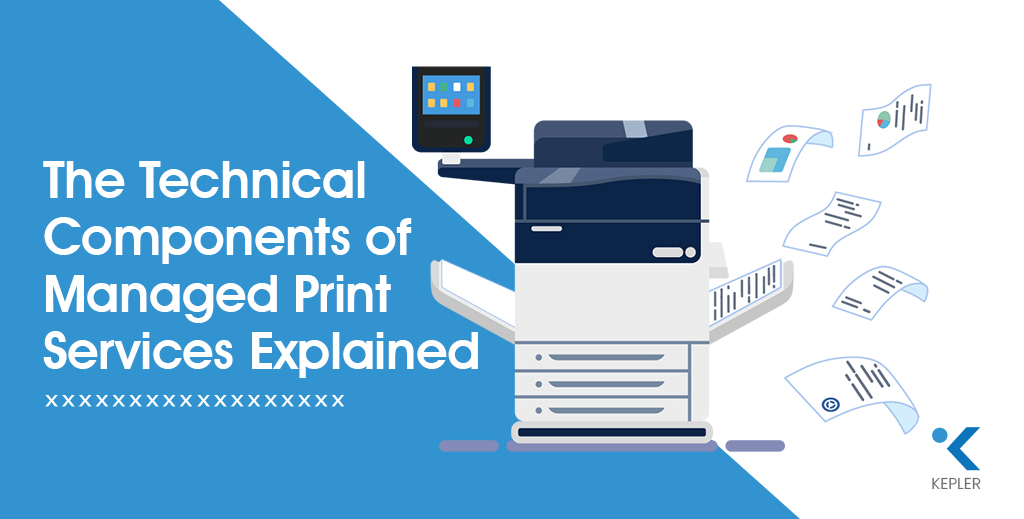
Printing may look simple on the surface: click print, collect documents, move on. But in modern business environments, printing is deeply connected to networks, security, workflows, and operational costs. As organizations grow, unmanaged printing often turns into a hidden drain on budgets, productivity, and IT resources. This is where managed print services come into play. Managed Print Services (MPS) go far beyond supplying printers or replacing toner. They rely on a carefully designed technical framework that monitors, manages, secures, and optimizes the entire print ecosystem. From device-level intelligence to network security and data analytics, MPS transforms printing into a controlled and measurable business process. At the center of this ecosystem is the office printer, not just as a standalone device, but as a connected endpoint within the organization’s IT infrastructure. Modern office printers interact with servers, user authentication systems, and cloud platforms, making them a critical component of operational efficiency and data security. When these devices are unmanaged, they can create blind spots in cost tracking, performance monitoring, and compliance. MPS ensures that every office printer operates efficiently, securely, and in alignment with broader business workflows. In many modern workplaces, this ecosystem is further supported through a printer rental & lease service, especially for businesses that want flexibility without heavy upfront investment. Rather than purchasing devices outright, organizations can deploy office printers on rental or lease models that scale with business needs. When combined with Managed Print Services, a printer rental & lease service ensures that hardware selection, maintenance, upgrades, and performance monitoring are handled as part of a single, optimized print strategy, reducing capital expenditure while maintaining full operational control. Before we dive into the individual components, ask yourself: Do you truly know what’s happening inside your print environment right now? Understanding the technical components of MPS is crucial for businesses that want to streamline their print infrastructure, improve operational efficiency, and reduce unnecessary costs. Many organizations underestimate how much unmanaged printing impacts daily operations. Printers often operate silently in the background, yet they consume resources continuously. Without visibility into usage, costs escalate unnoticed. MPS introduces transparency, helping businesses see printing not as a support function, but as a strategic operational layer that can be optimized. Let’s explore how it all works step by step. Overview of Managed Print Services Managed Print Services, often referred to as MPS, is a comprehensive approach to managing an organization’s printing environment. Instead of handling printers, supplies, maintenance, and security separately, MPS centralizes everything under a single, strategic framework. At its core, MPS: MPS works through a combination of software tools, monitoring agents, secure networks, and service-level agreements. Businesses of all sizes benefit—from small offices struggling with uncontrolled print costs to large enterprises managing hundreds of devices across multiple locations. One of the key strengths of MPS is its proactive nature. Instead of responding to printer issues after they disrupt work, MPS anticipates problems before they occur. This shift from reactive to proactive print management is what allows organizations to maintain continuity and predictability in their operations. Industries such as healthcare, education, finance, logistics, and corporate offices often rely on MPS to maintain control, compliance, and consistency in high-volume printing environments. Technical Components of Managed Print Services Managed Print Services function through a layered technical architecture. Each component plays a specific role, and together they deliver efficiency, visibility, and control. 1. Print Assessment and Analysis This is the foundation of MPS. It evaluates how printing is currently being used, identifying inefficiencies, redundancies, and cost drivers. Without assessment, optimization is guesswork. Print assessment acts as a diagnostic tool, revealing patterns that are otherwise invisible. It highlights who prints the most, which devices are underutilized, and where costs are unnecessarily high. These insights allow organizations to build realistic, data-backed optimization strategies. 2. Device Management Once data is collected, device management ensures that every printer and multifunction device operates efficiently, reliably, and within defined performance thresholds. Effective device management also standardizes the printer fleet. By reducing device variety and consolidating models, IT teams can simplify maintenance, training, and support while improving uptime across the organization. 3. Print Queue Management Print queues determine how jobs flow through the system. Effective print queue management prevents bottlenecks, prioritizes jobs, and reduces wasted output. Advanced queue management ensures that large print jobs don’t block critical documents. It also enables intelligent routing, automatically sending jobs to the most efficient device available. 4. Toner and Ink Management Automated monitoring ensures consumables are replaced only when necessary, eliminating emergency purchases and downtime. This component also reduces overstocking. Instead of storing excessive toner and ink, organizations maintain optimal inventory levels based on actual usage patterns. 5. Supplies Management This component handles the logistics of paper, consumables, and spare parts, ensuring uninterrupted printing operations. By centralizing supplies management, businesses gain better cost control and eliminate inconsistencies caused by decentralized purchasing. 6. Network and Security Management Printers are network endpoints and potential security risks. Network and security management protects data, enforces policies, and ensures compliance. Modern MPS platforms treat printers as part of the IT ecosystem, applying the same security principles used for servers and endpoints. This significantly reduces attack surfaces. Each of these components contributes directly to better print efficiency, lower operational costs, and improved reliability. Print Assessment and Analysis Print assessment is the diagnostic phase of MPS. It provides visibility into how printing actually happens across the organization, not how it’s assumed to happen. During this phase, MPS tools collect data such as: This data allows businesses to identify underused devices, overloaded printers, and unnecessary printing habits. Assessment data often reveals behavioral patterns, such as excessive color printing or printing large documents for brief reviews. Addressing these habits alone can lead to significant reductions in waste and costs. Assessment insights form the basis for print optimization, enabling data-driven decisions instead of assumptions. Device Management Effective device management ensures printers operate at peak performance throughout their lifecycle. Key aspects include: Device Monitoring and Reporting Real-time monitoring tracks device status, usage levels, and error conditions.

The Technical Components of Managed Print Services Explained Read Post »

How Paper Weight and Thickness Affect Inkjet Printing Performance
inkjet printer paper

How Paper Weight and Thickness Affect Inkjet Printing Performance

When it comes to achieving stunning, professional-quality prints, most people focus on printers, inks, or resolution settings, but one crucial factor often gets overlooked: your inkjet printing paper. The quality, weight, and thickness of the paper you choose can dramatically influence how your final prints look and feel. Whether you’re using an inkjet printer to print business documents or creative artwork, your paper determines everything from color accuracy to ink absorption. Heavier or thicker paper may seem “premium,” but does it always guarantee better prints? Not necessarily. And that’s exactly what we’re here to explore. In this guide, we’ll break down how paper weight and thickness affect printing performance, why they matter for inkjet printers specifically, and how you can choose the perfect paper for your projects.Let’s dive in! Understanding Paper Weight and Thickness Before we explore how weight and thickness impact print performance, let’s get clear on what these terms actually mean. Paper Weight Paper weight refers to how heavy a sheet of paper is—typically measured in gsm (grams per square meter). The higher the GSM, the heavier and usually thicker the paper feels. For example: Paper Thickness Paper thickness is measured in microns (µm) or points (pt). While weight and thickness often correlate, two papers with the same weight may differ in thickness due to coating and fiber density. Why It Matters Inkjet printing paper varies widely, matte, glossy, satin, fine-art, coated, and uncoated. Brands like Epson, Innova, Korejet, and Olmec each manufacture specialized inkjet papers with different coatings and thickness profiles tailored for photography, graphics, or everyday printing. Understanding these metrics helps you match your inkjet printer settings, ink type, and project needs with the right paper, ensuring color accuracy, smooth feeding, and superior output quality. How Paper Weight Affects Printing Performance Before we get into the details, ask yourself: Have you ever printed something that looked too dull, too wet, or too flimsy? Chances are, paper weight played a major role. 1. Ink Absorption & Bleed Control Inkjet printers spray tiny droplets of ink onto the paper. Lightweight paper (70–100 GSM) absorbs ink quickly, which can lead to: Heavier paper (180–300+ GSM), especially those with specialized coatings like on Epson or Olmec photo paper, absorbs ink more evenly—producing richer colors, better contrast, and crisp detail. 2. Handling and Feeding Printers “grab” paper using rollers. Lightweight printing paper feeds easily, but extremely heavy or textured paper may require: Some inkjet printer models handle 300 GSM paper effortlessly, while others may struggle, causing misfeeds or jams. 3. Print Sharpness Heavier papers maintain better structure during printing. They resist bending under ink saturation, resulting in: Example: Paper weight is the backbone of print quality—choose wisely for the type of output you want. How Paper Thickness Affects Printing Performance Now, let’s explore thickness another major factor in print quality. Imagine printing on thin newspaper versus thick cardstock. The experience (and the result) is completely different. 1. Stiffness & Durability Thicker paper feels more premium and holds up better when handled. This matters for prints like: Thicker inkjet media from brands like Innova or Korejet is designed to remain flat even with heavy ink coverage from your inkjet printer. 2. Print Finish & Texture Paper thickness and coating also influence finish: These finishes behave differently depending on thickness. For example, thicker matte photo papers absorb ink gradually, producing soft gradients and painterly effects. 3. Compatibility with Inkjet Printers Not every inkjet printer handles thick paper well. Ultra-thick papers (300–350 gsm) may require special settings or rear feeding. Thinner paper prints faster and works better for bulk printing—but at the cost of durability and quality. Example: Finding the right thickness helps balance print quality, durability, and printer compatibility. Choosing the Right Paper Weight and Thickness Choosing the right inkjet printing paper is easier when you match weight and thickness with your project’s purpose. Let’s walk through it together. 1. Printing Technique Since your focus is on inkjet printing, stick to specially coated inkjet papers designed for: Uncoated or offset papers won’t deliver the same clarity. 2. Intended Use Here’s a quick guide: 3. Budget Considerations Heavier, premium coated papers cost more, but they dramatically improve print appearance and durability. If you’re printing for clients, photography portfolios, or exhibits, the upgrade is worth it. Example: If you’re printing photos, a 260 GSM glossy paper from brands like Epson or Olmec will outperform any lightweight alternative using your inkjet printer. Choosing the right weight and thickness is simply matching the output you want to the paper designed for it. Best Practices for Working with Paper Weight and Thickness Before we wrap up, here are some friendly, practical tips to help you get the best results with your inkjet printing paper. 1. Adjust Printer Settings Always select the correct paper type in your inkjet printer menu. This adjusts: 2. Use the Correct Feed Tray Thicker papers often require rear feeding to prevent bending or internal friction. 3. Store Paper Properly Humidity affects paper thickness and ink behavior. Store papers in a cool, dry place, especially fine-art and glossy papers. 4. Avoid Common Mistakes 5. Troubleshooting Tips These simple practices ensure consistent, professional-quality results. FAQs 1. Does using higher GSM inkjet printing paper improve print quality?Higher GSM inkjet printing paper can give prints a more durable feel and richer colors, but the coating and your inkjet printer’s compatibility are just as important for the best results. 2. What type of paper works best with an inkjet printer?Inkjet-specific coated papers like matte, glossy, or fine-art papers give the best print quality. 3. Where can I buy high-quality inkjet printing paper?Kepler Tech LLC, authorized inkjet paper and media suppliers in Dubai, offers premium inkjet papers from trusted brands like Epson, Innova, Korejet, and Olmec. 4. Why do some papers cause smudging?This often happens with non-inkjet-coated paper or paper that absorbs ink too quickly. 5. Which paper finish gives the sharpest prints?Gloss and semi-gloss finishes typically offer the highest sharpness, vibrancy, and clarity. Conclusion Paper weight and thickness

How Paper Weight and Thickness Affect Inkjet Printing Performance Read Post »

why Epson printer printing blank pages
Office Printer

Why Is My Epson Printer Printing Blank Pages?

If you own an Epson printer, particularly models like EcoTank, WorkForce, or Expression, you may sometimes face a frustrating issue: the printer goes through all the motions, but the paper comes out completely blank. While this may seem alarming, it is actually a relatively common problem and can happen with both new and older Epson printers. For offices across Dubai, Abu Dhabi, and the wider UAE, where businesses rely heavily on office printers for contracts, invoices, marketing materials, reports, and compliance documents, even a short printing disruption can significantly affect operations. A blank page can halt workflow, delay client communications, and disrupt day-to-day business processes. The good news? Most issues behind Epson printers printing blank pages are simple to diagnose and often easy to fix without requiring a professional service call. By understanding the root causes, applying proper printer maintenance, and following step-by-step troubleshooting methods, you can restore your printer to optimal functioning quickly and prevent similar problems in the future. This guide provides a complete overview of why your Epson printer might print blank pages and how to resolve these issues efficiently. Common Reasons Why Your Epson Printer Prints Blank Pages Before rushing to professional repair services, it is important to check common causes that may be stopping your Epson printer from producing prints. Identifying the problem early can save both time and costs, especially if you use office printers for daily tasks. Many blank-page issues come from simple maintenance problems like dried ink, incorrect settings, or minor software glitches that build up over time. In most cases, Epson printers, whether EcoTank, WorkForce, or home/office inkjet models, produce blank pages due to issues that can be easily fixed at home. Factors like infrequent printing, using non-genuine ink, improper paper selection, or outdated drivers can all lead to printing failures. By understanding these common causes before moving to advanced troubleshooting, you can quickly restore your Epson printer’s performance and avoid unnecessary downtime, especially in busy office or business environments. 1. Low, Empty, or Improper Ink Levels Even if your printer shows full ink levels, the actual ink may not be flowing correctly due to air bubbles, dried ink, or improper refilling. This is particularly common in Epson EcoTank printers, which utilize bulk ink tanks instead of traditional cartridges. Sometimes the printer may display sufficient ink, yet the nozzles fail to release it properly because the ink inside the tank or tubes has thickened, or air pockets have interrupted the flow. In many cases, users assume their Epson printer is malfunctioning when the issue is simply an ink delivery problem caused by incorrect handling or long gaps between prints. Ensuring the tanks are filled with genuine Epson ink, checking for proper sealing, and avoiding overfilling can help maintain smooth ink flow and prevent blank page output in both home and office printing environments. Possible Signs: Fix: Proper ink management is essential for maintaining consistent print quality and avoiding interruptions in your office printer workflow. 2. Printhead Blockage (Very Common in Epson EcoTank & Inkjet Models) Epson printers rely on Micro Piezo printhead technology, which produces ultra-fine droplets for high-precision printing. However, if the printer is unused for extended periods, ink can dry inside the nozzles, leading to blank or incomplete printing. This issue is especially common in work environments where printing is irregular, causing the ink to settle and form clogs within the printhead. Over time, even minor blockages can restrict ink flow, affecting overall print quality and causing colors or entire sections of the page to disappear. Regular maintenance and periodic usage are essential to keep the printhead active and prevent clogging, especially in Epson EcoTank and inkjet models that rely on continuous ink flow for optimal performance. Symptoms: Fix: By performing these regular maintenance steps, business printers can remain reliable, especially in busy offices handling high-volume printing tasks. 3. Incorrect Ink Installation or Air in Ink Tubes Incorrect installation or air entering the ink lines is common in EcoTank printers after refilling. If air gets trapped, your printer may detect full ink levels but still output blank pages. This usually happens when the ink tanks are not sealed properly or when the refill process introduces small air pockets into the tubes. Even a tiny air bubble can interrupt the smooth flow of ink, causing colors to disappear or the printhead to release no ink at all. Ensuring the ink is installed correctly and the system is fully primed is essential for maintaining consistent print quality. Signs: Fix: Careful handling of Epson ink ensures smooth operation and prevents repeated printer troubleshooting issues. For office printers in high-use environments, correct installation is key to preventing downtime. 4. Wrong Paper Settings or Improper Paper Loading Epson printers are sensitive to paper type and size. Selecting the wrong type or loading the paper incorrectly can prevent ink from being applied to the page. Even small mismatches like choosing glossy settings while using matte paper or placing sheets unevenly can disrupt the printing process and result in blank pages. Ensuring that the paper is properly aligned, clean, and compatible with the selected settings helps maintain smooth and accurate printing. What to Check: Correct paper settings help maintain print quality, prevent blank pages, and ensure your business printer handles all office and marketing materials efficiently. 5. Outdated Printer Drivers or Software Glitches An outdated, corrupted, or misconfigured printer driver can result in blank page output. This issue is more common than many users realize, especially when the system hasn’t been updated for a long time or when the printer software conflicts with recent OS updates. Since Epson printers rely heavily on proper communication between the device and the computer, even minor software errors can interrupt the printing process and cause the machine to produce blank sheets instead of the expected output. Fix: Keeping drivers updated ensures smooth printing and prevents software-related issues, which is crucial for offices relying on Epson WorkForce printers or EcoTank printers for critical tasks. 6. Firmware or Communication Issues Sometimes,

Why Is My Epson Printer Printing Blank Pages? Read Post »

Printer AMC vs FSMA Which is Suitable for Your Business
Managed print service

Printer AMC vs FSMA — Which is Suitable for Your Business?

Think about the last time your office printer stopped working. It may be jammed when you were printing invoices. The toner may have run out during a client presentation. Or perhaps the machine simply displayed one of those mysterious error codes that no one in the office, no matter how “tech-savvy,” can decode. It always happens at the worst possible moment. In fast-paced business environments like Dubai and the GCC, where companies depend heavily on documentation, contracts, quotations, and compliance-related forms, a reliable printer is more than just an office tool. It’s the backbone of daily operations. One breakdown can interrupt workflows, frustrate employees, and create unexpected expenses. This is exactly why businesses choose structured service plans and, in many cases, even explore comprehensive Managed Print Service solutions to prevent downtime before it happens. But deciding which plan actually benefits your business, Printer AMC or Printer FSMA, can be confusing. Printer AMC (Annual Maintenance Contract) looks affordable at first. Printer FSMA (Full-Service Maintenance Agreement) appears premium but promises more coverage. So what’s right for you? Let’s break it down in a simple, interactive, and business-focused way so you can confidently choose the plan that supports your operations, budget, and long-term growth. Before We Dive In — A Quick Self-Check Ask yourself these questions: 1. Do your teams print frequently documents, reports, contracts, and marketing materials? If yes, downtime costs you real money. 2. Do you prefer predictable monthly expenses over surprise repair bills? If yes, cost consistency matters. 3. Do you want a service plan that includes everything: parts, toners, repairs, support without hidden fees? If yes, all-inclusive models save admin time and stress. 4. Do you want zero involvement in logging complaints, following up with technicians, or managing printer breakdowns? If yes, you need a service plan that does all of that for you. Now keep your answers in mind as we explore AMC and FSMA in depth. Understanding Printer AMC (Annual Maintenance Contract) Let’s Start With a Simple Scenario Imagine you pay a yearly maintenance fee for your printer. A technician visits a few times a year to clean the machine, lubricate moving parts, update firmware, and perform general upkeep. This routine care helps your printer function smoothly. That is Printer AMC in a nutshell. Printer AMC is essentially a preventive maintenance agreement. It gives you routine servicing and technical support at fixed intervals. Most small businesses are familiar with Printer AMC because it seems simple and budget-friendly. But the catch? The yearly fee only covers basic service. Almost everything else, especially the expensive stuff, is charged separately. What Printer AMC Typically Includes Printer AMC generally covers routine cleaning, mechanical check-ups, inspections, and minor adjustments. Technicians may fix small alignment issues or mechanical glitches during scheduled visits. Printer AMC also covers labor charges during these routine check-ups. The Real Limitations of Printer AMC This is where many businesses get caught off guard. While Printer AMC handles preventive maintenance, it does not cover most consumables like toner or ink cartridges. It also excludes major component replacements such as fusers, belts, motors, print heads, or circuit boards. If any of these fail, and they often do in medium to high-volume printing environments, you must pay separately. And repairs? Under Printer AMC, emergency breakdowns, unexpected failures, urgent technician visits, and most spare parts come with additional charges. These costs can appear suddenly and unpredictably, making it extremely difficult to estimate monthly or annual printer-related expenses. Another overlooked issue is time. Printer AMC requires administrative involvement. Someone from your team must report issues, follow up with the service provider, monitor repair progress, and sometimes even negotiate charges. So Who Really Benefits From Printer AMC? Printer AMC works best for businesses that print occasionally or own just one or two small office printers. In such cases, major breakdowns are less likely, and routine servicing may be enough. For low-volume printing environments like small retail shops, kiosks, small clinics, or consulting firms, Printer AMC can be a reasonable choice. But for medium to large businesses, Printer AMC often leads to: This is why many growing companies eventually shift away from AMC. Understanding Printer FSMA (Full-Service Maintenance Agreement) Before We Dive In — Imagine This Instead What if you never had to worry about paying for breakdowns, replacing expensive parts, or buying toner at the last minute? What if one fixed monthly amount covered everything—servicing, repairs, consumables, support, even emergency visits? What if printer downtime dropped to nearly zero because technicians managed everything proactively? This is Printer FSMA. Printer FSMA is a comprehensive, all-inclusive maintenance agreement that takes the entire burden of printer care off your shoulders. What Makes Printer FSMA Different Under Printer FSMA, you get full coverage for everything your printer needs labor, servicing, spare parts, major repairs, and even consumables like toner and ink cartridges. There are no surprise expenses because all the essential elements are already included. Most Printer FSMA plans operate on a “fixed monthly fee” or “per-print pricing,” which means your cost depends on monthly print volume. This structure ensures predictable budgeting, an invaluable advantage for any business. Why Printer FSMA Is Increasingly Popular Companies in the GCC are rapidly adopting Printer FSMA because it eliminates uncertainty. High-volume offices, law firms, logistics companies, educational institutions, marketing agencies, and corporate environments see immediate benefits from its all-inclusive model. When you never have to pay separately for breakdowns, spare parts, or toners, the administrative workload decreases drastically. Your accounting team also benefits because FSMA simplifies cost forecasting. Printer FSMA in Action Here’s what a Printer FSMA plan typically offers: FSMA usually runs on a 1–3 year contract, ensuring long-term stability and peace of mind. Printer AMC vs FSMA — Cost Breakdown Understanding the cost difference between AMC and FSMA is essential. Here is a simplified comparison: Feature AMC FSMA Upfront Cost High yearly fee No upfront cost (monthly billing) Repairs Extra charges Fully included Ink & Toners Not included Included Monthly Budget Highly variable Predictable fixed cost Best For Low-volume

Printer AMC vs FSMA — Which is Suitable for Your Business? Read Post »

How to Choose an Office Printer for Large Volume Printing
Office Printer

How to Choose an Office Printer for Large Volume Printing

When it comes to running a busy office, printing is often the backbone of productivity. From invoices and reports to brochures and marketing materials, a reliable office printer keeps your workflows running smoothly. But when your team handles hundreds or even thousands of pages every week, not just any printer will do. Choosing the right office printer for large volume printing isn’t just about speed or cost; it’s about finding the perfect balance between performance, reliability, and long-term efficiency. The right printer can save your business time, reduce printing costs, and significantly enhance productivity. In this guide, you’ll learn how to evaluate your business printing needs, what features matter most in a high-volume office printer, and how to identify models that deliver consistent quality without draining your budget. Understanding Your Printing Needs Before investing in a printer, the first step is understanding what your office actually needs. Many businesses rush into buying a printer that looks good on paper—but without assessing factors like volume, document types, and quality, they end up with performance gaps and frequent maintenance headaches. Volume Matters Start by estimating your monthly print volume. Do you print a few thousand pages or tens of thousands? This helps determine whether you need a heavy-duty business inkjet or a multifunction printer (MFP) designed for endurance. Document Type and Quality If your business primarily prints text-heavy documents, a standard business printer may suffice, and when it comes to graphics, color reports, and client-facing materials, laser printers often fall short in producing rich, detailed color tones and smooth gradients. In contrast, inkjet printers, with their high DPI resolution, excel in delivering vibrant colors, crisp details, and professional-quality visuals, making them the ideal choice for businesses that value presentation and visual impact. Speed and Efficiency Printing speed measured in pages per minute (PPM) is another key factor. For high-demand environments, aim for at least 24–35 PPM to avoid bottlenecks during peak workloads. The Bottom Line Understanding your print job requirements and print volume ensures that the printer you choose won’t just meet your current needs but will also scale as your business grows. Key Factors to Consider When Choosing an Office Printer Let’s dive deeper into the core features that separate average printers from the best office printers designed for high-volume business use. 1. Print Technology: Inkjet vs. Laser For large offices, many assume laser printers are the only choice but modern inkjet printers have revolutionized business printing. Epson’s PrecisionCore Heat-Free Technology, for example, delivers high-speed, professional-quality output with lower energy consumption and less maintenance than traditional laser printers. Inkjet printers also offer vivid color reproduction, ideal for marketing teams, creative agencies, and businesses that require detailed graphics. 2. Print Resolution and Quality Look for a printer with at least 1200 x 2400 DPI for text and color accuracy. Inkjet models like the Epson WorkForce Pro WF-C879R DWF and Epson WF​ AM-C4000​ Business Printer deliver professional-grade clarity, making them perfect for both text and visual documents. 3. Speed and Performance Speed matters in every high-volume environment. While speed is typically measured in PPM, true efficiency depends on consistent performance under load. Printers such as the Epson EM-C800 Color Multifunction Printer can handle large print queues efficiently while maintaining color consistency and sharpness. 4. Paper Handling Capacity If you’re managing large print batches, check the input and output tray capacity. A robust office printer should handle 500+ sheets per tray and support different paper sizes (A4, A3, envelopes, and card stock). Duplex (two-sided) printing is also essential to save paper and time. 5. Connectivity Options Modern offices need versatile connectivity. Look for printers that support Ethernet, Wi-Fi, USB, mobile printing, and cloud integration. This ensures that your employees can print securely from laptops, tablets, or smartphones anytime, anywhere. 6. Maintenance and Support Maintenance often defines the true cost of ownership. Choose printers with long-lasting ink supplies, minimal replacement cycles, and reliable manufacturer support. Epson’s cartridge-free Replaceable Ink Pack System (RIPS) reduces downtime and waste, helping you print thousands of pages before replacements are needed. So, always check local support availability and warranty coverage, especially if your business depends heavily on uninterrupted printing. Types of Office Printers for Large Volume Printing Now that we’ve covered the key features, let’s explore which types of printers are best suited for large-volume business printing and why inkjet and multifunction printers are leading the charge. 1. Inkjet Printers for Business Gone are the days when inkjets were only for home offices. Today’s business inkjet printers combine affordability, efficiency, and print quality. They’re ideal for businesses that produce high-quality marketing materials, reports, and graphics. For example, the Epson WF AM-C4000 Business Printer delivers fast print speeds up to 24 PPM, low running costs, and sharp color output. It’s energy-efficient, compact, and built for heavy-duty office environments. Pros: Cons: 2. Multifunction Printers (MFPs) For offices that demand printing, scanning, copying, and faxing from a single device, multifunction printers are the ultimate productivity tools. For example, the Epson EM-C800 Color Multifunction Printer streamlines operations by handling multiple tasks simultaneously, while the Epson WorkForce Pro WF-C879R DWF offers A3 printing, large ink packs, and low-cost per page printing making it a top choice for busy offices. Pros: Cons: 3. Production Printers For enterprises or print-heavy departments, production printers handle tens of thousands of pages per month with ease. These are more specialized but offer exceptional speed and durability. However, unless your business operates like a print shop, a high-end multifunction inkjet printer is typically a more cost-effective and sustainable choice. Evaluating Total Cost of Ownership Choosing the right printer isn’t just about the sticker price; it’s about the total cost of ownership over its lifespan. Initial Cost Inkjet and multifunction printers often cost less up front than equivalent laser printers. But even more importantly, they’re more energy-efficient, leading to significant long-term savings. Ongoing Costs Evaluate ink or toner expenses, maintenance frequency, and paper consumption. Epson’s inkjet systems, especially models with RIPS technology, use high-capacity ink packs that can print up to

How to Choose an Office Printer for Large Volume Printing Read Post »

How ERPNext Can Be Customized for Different Business Needs
ERP

How ERPNext Can Be Customized for Different Business Needs

In today’s fast-evolving digital economy, businesses across industries seek smart and flexible business software that adapts to their specific workflows instead of forcing them into rigid templates. This is where ERPNext software shines. Designed as an open-source, comprehensive business solution, ERPNext integrates multiple departments such as accounting, sales, HR, inventory, and project management into a single unified platform, ensuring smooth operations and real-time collaboration. Unlike many traditional ERP systems, ERPNext’s greatest strength lies in its customizability. It’s not just a one-size-fits-all ERP but a framework that evolves with your organization’s growth and unique operational demands. Whether you run a small retail store, a mid-sized service firm, or a large-scale manufacturing unit, ERPNext can be precisely tailored to your niche requirements. This adaptability enables businesses to leverage automation, enhance efficiency, and maintain a competitive edge in dynamic markets. Through this blog, we’ll explore how ERPNext customization empowers various businesses. You’ll discover how its modular architecture supports different industries, how its tailored workflows improve overall performance, and how specific departments from sales to HR can benefit from a more personalized ERP experience. We’ll also examine the role of companies in helping organizations implement and customize ERPNext for maximum impact. Understanding ERPNext Customization Before diving into industry-specific examples, it’s essential to understand how ERPNext customization works. ERPNext’s open-source framework allows deep flexibility without compromising on performance or scalability. Let’s explore the different levels of customization available: Module Customization ERPNext comes preloaded with modules such as Accounting, Manufacturing, CRM, HR, and Sales. Depending on the size and needs of the business, companies can add or remove modules to reflect their operational structure. For instance, a consultancy firm may focus on CRM and Projects, while a manufacturing company emphasizes Production and Inventory. Field Customization Every business collects unique data. ERPNext allows administrators to add custom fields or modify existing ones across forms, like creating a “Client Priority” field in CRM or adding a “Batch Expiry Date” in Inventory. This ensures critical information aligns with the organization’s data collection framework. Workflow Customization One of ERPNext’s most powerful features is custom workflow creation. Businesses can map their processes, like sales approvals, leave requests, or invoice validations, into predefined workflows with automated approval steps and role-based permissions. This not only minimizes human errors but also ensures smooth task progression. Report Customization Decision-makers need precise insights. ERPNext allows building custom reports using filters, scripts, and dashboards. Whether it’s daily sales analytics, performance KPIs, or monthly financial overviews, customized reports empower better decision-making. In essence, ERPNext customization transforms the system from a generic ERP to a personalized digital ecosystem that mirrors the company’s distinct identity. Customizing ERPNext for Different Industries ERPNext is built to serve a wide spectrum of industries. Its modular and flexible structure allows seamless adaptation across sectors, ensuring every business can manage its distinct workflows. Here’s how ERPNext can be tailored for key industries: Manufacturing Industry Manufacturers rely on precision, timing, and efficiency. Customizing ERPNext for manufacturing enables companies to: Manufacturers can customize reports for production costs, energy usage, or downtime, ensuring process transparency and cost optimization. Retail Industry Retail operations demand agility and intelligent inventory control. For retail businesses, ERPNext can be customized to: By customizing ERPNext’s CRM and eCommerce modules, retailers achieve smoother sales cycles and improved customer retention. Service Industry Service-based firms like agencies, consultancies, and IT providers depend on time efficiency and accurate billing. With ERPNext customization, they can: ERPNext’s project and timesheet modules, when customized, enable streamlined service delivery and accurate revenue recognition. Customizing ERPNext for Different Business Functions Beyond specific industries, ERPNext’s modular design ensures each business function can also be optimized independently. This flexibility empowers department heads to focus on core goals while maintaining data consistency. Sales and Marketing For sales teams, ERPNext can be customized to: These modifications align sales goals with company-wide performance metrics, ensuring timely conversions and campaign transparency. Finance and Accounting Finance departments can leverage ERPNext customization to: These configurations strengthen financial control, minimize errors, and offer real-time financial clarity for leadership. Human Resources (HR) In HR, ERPNext can simplify complex people processes: Customized HR workflows improve organizational culture while ensuring transparency in employee management. Benefits of Customizing ERPNext Customizing ERPNext leads to measurable benefits that enhance productivity, decision-making, and scalability. Increased Efficiency Automation and process alignment eliminate redundant manual tasks, reducing errors and delays across departments. Improved Decision-Making Custom dashboards and real-time analytics offer leaders actionable insights, enabling data-driven decisions that improve overall agility. Enhanced User Experience Custom interfaces tailored for teams simplify daily tasks, improving system adoption and overall employee satisfaction. Scalability As businesses expand into new markets or services, ERPNext grows with them, offering advanced modules and deeper integrations that support future scaling. FAQs 1. Is ERPNext suitable for small businesses?Yes. ERPNext’s modular structure allows small businesses to start with essential features and scale as they grow. 2. Can ERPNext integrate with third-party apps?Absolutely. ERPNext supports integrations with payment gateways, eCommerce platforms, and API-based applications. 3. How long does ERPNext customization take?Timelines depend on complexity and scale, but with expert assistance from teams like Kepler Tech in Dubai, implementation can be quick and efficient. 4. Is ERPNext open-source and secure?Yes, ERPNext is open-source and built with robust security protocols to protect company data. Conclusion As industries evolve, businesses need software that keeps pace with change rather than restricts it. ERPNext software emerges as a powerful, flexible, and scalable business solution that enables organizations to align technology with their goals. Through targeted customization, whether in manufacturing, retail, services, or core departments, companies can foster innovation, operational efficiency, and long-term growth. Organizations looking to maximize the potential of ERPNext should consider partnering with experts like Kepler Tech LLC, recognized as one of the best business solution providers in Dubai and across the UAE, to tailor ERPNext perfectly to their unique processes. With the right customization, ERPNext doesn’t just manage business operations; it transforms them for a smarter, data-driven future.

How ERPNext Can Be Customized for Different Business Needs Read Post »

Scroll to Top