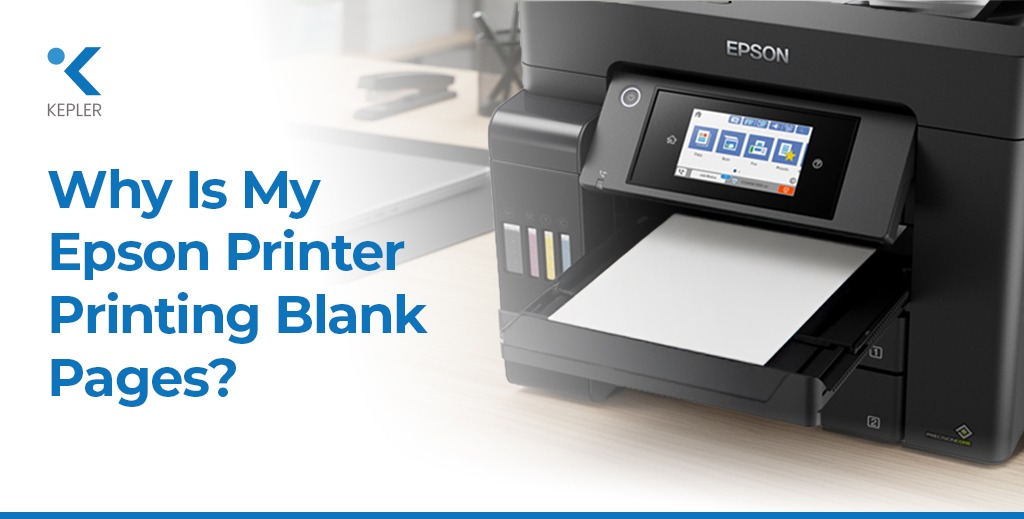
If you own an Epson printer, particularly models like EcoTank, WorkForce, or Expression, you may sometimes face a frustrating issue: the printer goes through all the motions, but the paper comes out completely blank. While this may seem alarming, it is actually a relatively common problem and can happen with both new and older Epson printers.
For offices across Dubai, Abu Dhabi, and the wider UAE, where businesses rely heavily on office printers for contracts, invoices, marketing materials, reports, and compliance documents, even a short printing disruption can significantly affect operations. A blank page can halt workflow, delay client communications, and disrupt day-to-day business processes.
The good news? Most issues behind Epson printers printing blank pages are simple to diagnose and often easy to fix without requiring a professional service call. By understanding the root causes, applying proper printer maintenance, and following step-by-step troubleshooting methods, you can restore your printer to optimal functioning quickly and prevent similar problems in the future.
This guide provides a complete overview of why your Epson printer might print blank pages and how to resolve these issues efficiently.
Common Reasons Why Your Epson Printer Prints Blank Pages
Before rushing to professional repair services, it is important to check common causes that may be stopping your Epson printer from producing prints. Identifying the problem early can save both time and costs, especially if you use office printers for daily tasks. Many blank-page issues come from simple maintenance problems like dried ink, incorrect settings, or minor software glitches that build up over time.
In most cases, Epson printers, whether EcoTank, WorkForce, or home/office inkjet models, produce blank pages due to issues that can be easily fixed at home. Factors like infrequent printing, using non-genuine ink, improper paper selection, or outdated drivers can all lead to printing failures. By understanding these common causes before moving to advanced troubleshooting, you can quickly restore your Epson printer’s performance and avoid unnecessary downtime, especially in busy office or business environments.
1. Low, Empty, or Improper Ink Levels
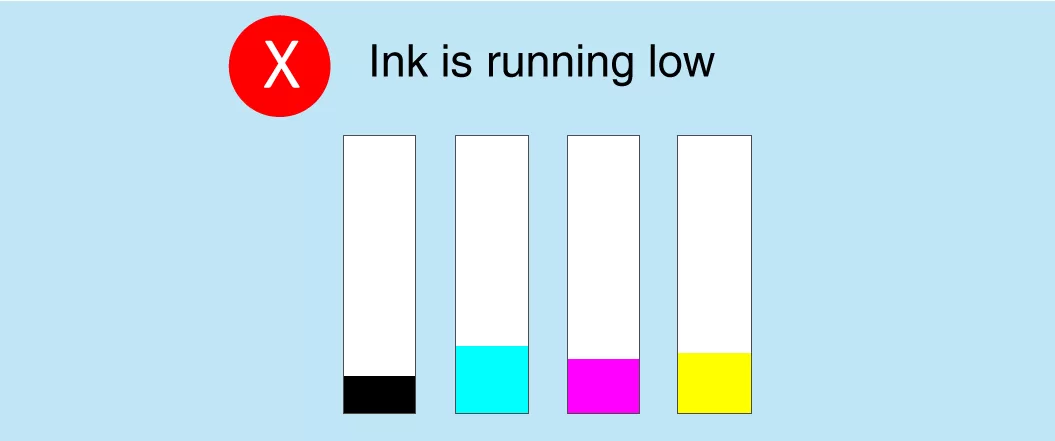
Even if your printer shows full ink levels, the actual ink may not be flowing correctly due to air bubbles, dried ink, or improper refilling. This is particularly common in Epson EcoTank printers, which utilize bulk ink tanks instead of traditional cartridges. Sometimes the printer may display sufficient ink, yet the nozzles fail to release it properly because the ink inside the tank or tubes has thickened, or air pockets have interrupted the flow.
In many cases, users assume their Epson printer is malfunctioning when the issue is simply an ink delivery problem caused by incorrect handling or long gaps between prints. Ensuring the tanks are filled with genuine Epson ink, checking for proper sealing, and avoiding overfilling can help maintain smooth ink flow and prevent blank page output in both home and office printing environments.
Possible Signs:
- Prints gradually fade before eventually showing blank pages
- Ink tanks appear full, yet output is blank
- New cartridges or ink tanks are not recognized by the printer
Fix:
- Verify ink levels using the printer menu or Epson software utility
- Refill the EcoTank ink carefully, following the manufacturer’s instructions
- Ensure cartridges are securely clicked into place
- Always use genuine Epson ink, as third-party alternatives can clog nozzles and lead to blank printing
Proper ink management is essential for maintaining consistent print quality and avoiding interruptions in your office printer workflow.
2. Printhead Blockage (Very Common in Epson EcoTank & Inkjet Models)
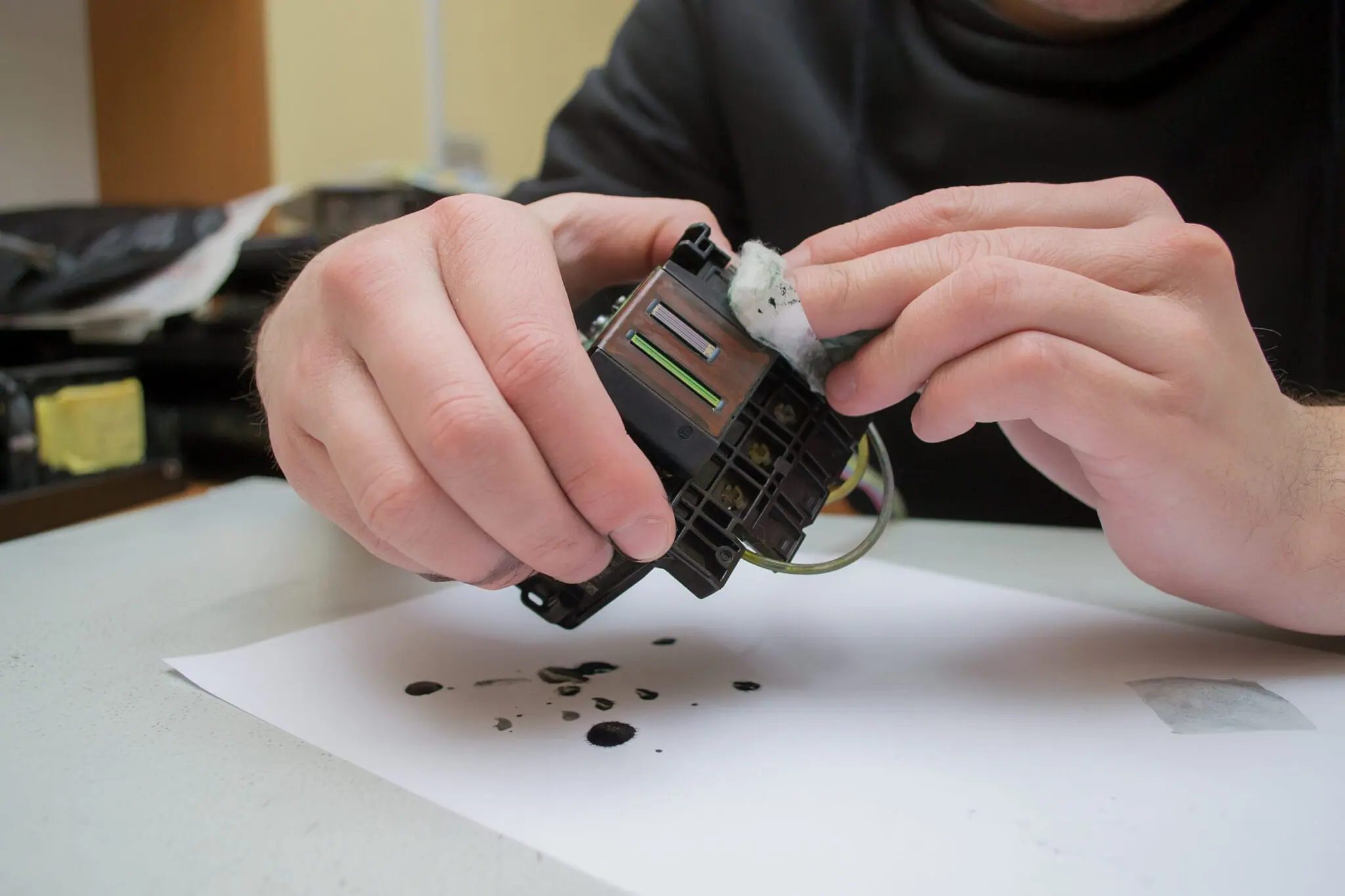
Epson printers rely on Micro Piezo printhead technology, which produces ultra-fine droplets for high-precision printing. However, if the printer is unused for extended periods, ink can dry inside the nozzles, leading to blank or incomplete printing. This issue is especially common in work environments where printing is irregular, causing the ink to settle and form clogs within the printhead. Over time, even minor blockages can restrict ink flow, affecting overall print quality and causing colors or entire sections of the page to disappear.
Regular maintenance and periodic usage are essential to keep the printhead active and prevent clogging, especially in Epson EcoTank and inkjet models that rely on continuous ink flow for optimal performance.
Symptoms:
- Completely blank pages
- Certain colors missing
- Lines or streaks appearing on the paper
Fix:
- Run a Nozzle Check via printer settings
- Perform Head Cleaning cycles 2–3 times
- For stubborn clogs, use the “Power Cleaning” option on your Epson printer
- To avoid recurring clogs, print at least once a week. Regular use keeps ink flowing and maintains Epson printer performance
By performing these regular maintenance steps, business printers can remain reliable, especially in busy offices handling high-volume printing tasks.
3. Incorrect Ink Installation or Air in Ink Tubes
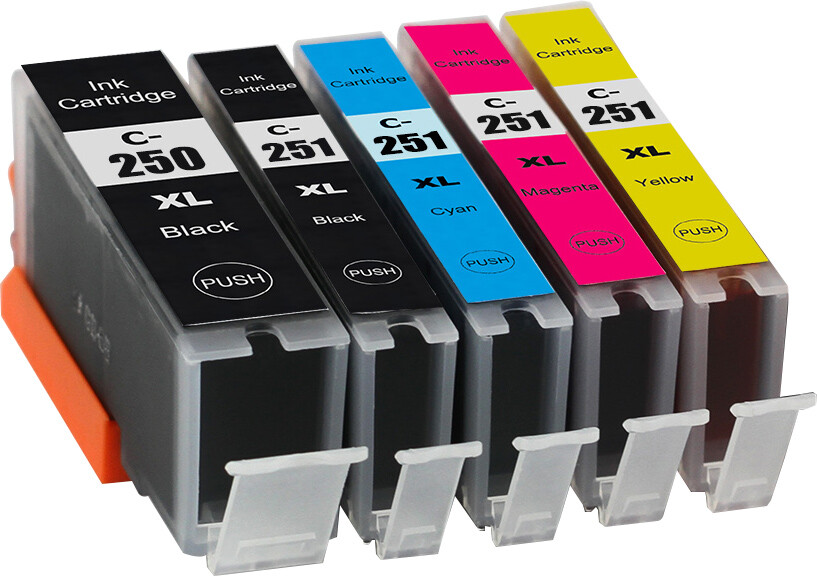
Incorrect installation or air entering the ink lines is common in EcoTank printers after refilling. If air gets trapped, your printer may detect full ink levels but still output blank pages. This usually happens when the ink tanks are not sealed properly or when the refill process introduces small air pockets into the tubes. Even a tiny air bubble can interrupt the smooth flow of ink, causing colors to disappear or the printhead to release no ink at all. Ensuring the ink is installed correctly and the system is fully primed is essential for maintaining consistent print quality.
Signs:
- Printer recognizes ink, but pages remain blank
- Only some colors print, while others are missing
Fix:
- Check for air in the ink lines
- Use the “Ink Charge / Ink Purge” feature available on many EcoTank models
- Make sure all tank caps are securely sealed
Careful handling of Epson ink ensures smooth operation and prevents repeated printer troubleshooting issues. For office printers in high-use environments, correct installation is key to preventing downtime.
4. Wrong Paper Settings or Improper Paper Loading
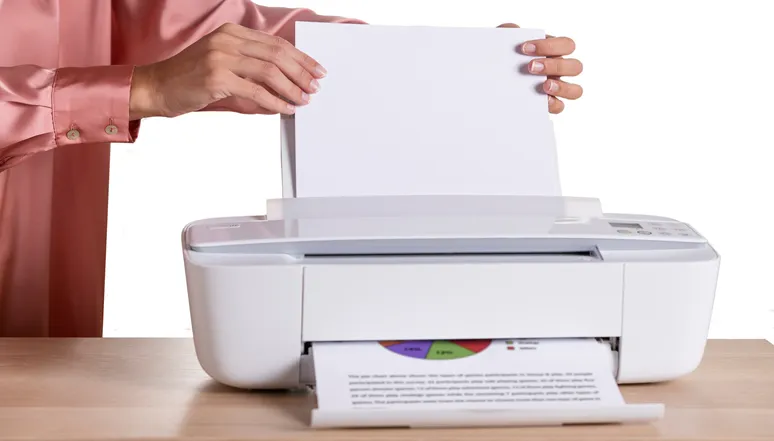
Epson printers are sensitive to paper type and size. Selecting the wrong type or loading the paper incorrectly can prevent ink from being applied to the page. Even small mismatches like choosing glossy settings while using matte paper or placing sheets unevenly can disrupt the printing process and result in blank pages. Ensuring that the paper is properly aligned, clean, and compatible with the selected settings helps maintain smooth and accurate printing.
What to Check:
- Paper type: Matte, Glossy, Plain, or Special Media
- Paper size: A4, Letter, Legal
- Ensure sheets are not curled, dusty, or damp
Correct paper settings help maintain print quality, prevent blank pages, and ensure your business printer handles all office and marketing materials efficiently.
5. Outdated Printer Drivers or Software Glitches

An outdated, corrupted, or misconfigured printer driver can result in blank page output. This issue is more common than many users realize, especially when the system hasn’t been updated for a long time or when the printer software conflicts with recent OS updates. Since Epson printers rely heavily on proper communication between the device and the computer, even minor software errors can interrupt the printing process and cause the machine to produce blank sheets instead of the expected output.
Fix:
- Download the latest driver from Epson’s official support page
- Reset printing preferences
- Remove and re-add the printer on your computer
Keeping drivers updated ensures smooth printing and prevents software-related issues, which is crucial for offices relying on Epson WorkForce printers or EcoTank printers for critical tasks.
6. Firmware or Communication Issues
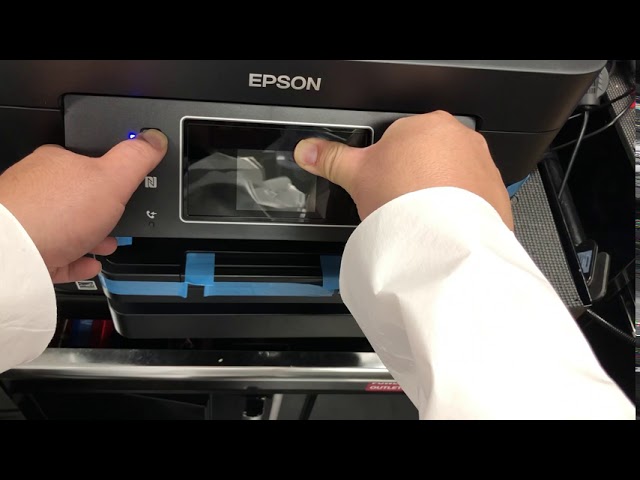
Sometimes, printers receive incorrect data due to various connection-related problems. These issues can interrupt the communication between your device and the Epson printer, causing it to process print commands incorrectly. Even minor disruptions may lead to blank pages or incomplete prints, especially if the connection is unstable or outdated.
- Faulty USB cables
- Weak Wi-Fi signals
- Misconfigured print spoolers on Windows
Solution:
- Restart both the printer and the computer
- Reconnect Wi-Fi or try a different USB cable/port
Maintaining proper connectivity and software updates keeps office printers reliable for daily operations.
Step-by-Step Troubleshooting for Epson Printing Blank Pages Issue
Following these steps can restore your printer to proper function:
Step 1: Run a Nozzle Check
Menu → Maintenance → Nozzle Check
Check for missing colors or broken patterns. If issues persist, proceed to Step 2.
Step 2: Perform Head Cleaning
Menu → Maintenance → Head Cleaning
Repeat 2–3 times, leaving 5 minutes between cycles. For stubborn clogs, use “Power Cleaning.”
Step 3: Review Ink Levels & Tank Caps
Ensure tanks are filled correctly, caps are tight, and cartridges are properly installed.
Step 4: Check Paper Size, Type & Loading
Adjust paper settings and reload sheets neatly. Avoid textured or glossy papers in normal print mode.
Step 5: Update Epson Drivers
Remove old drivers, install the latest version, and restart devices.
Step 6: Reset the Printer
Menu → Settings → Restore Default Settings
Advanced Troubleshooting (If Problem Still Exists)
1. Clear the Print Queue
Pending jobs can block new prints.
- Windows: Settings → Bluetooth & Devices → Printers → Open Queue → Cancel All
- Mac: System Settings → Printers → Clear Jobs
2. Alignment and Calibration
Menu → Maintenance → Print Head Alignment
Ensures precise ink placement and improves overall print quality.
3. Deep Manual Printhead Cleaning (Expert-Level)
Severe clogs may require professional cleaning with:
- Printhead cleaning kits
- Lint-free cloth
- Non-alcoholic cleaning solution
Seek professional service if unsure to avoid damage. This is often necessary for high-use office printers in large corporate setups.
Prevention Tips to Avoid Blank Pages on Epson Printers
- Print at least once a week to prevent nozzle drying
- Use genuine Epson ink for long-term reliability
- Keep the printer in a cool, stable environment
- Tighten EcoTank caps to prevent air bubbles
- Update drivers regularly to fix software bugs
FAQs
1. Why is my Epson EcoTank printing blank pages even with full ink?
Air bubbles or clogged nozzles are common. Use “Power Cleaning” and check tank caps.
2.How do I unclog Epson printheads without wasting ink?
Start with Nozzle Check → Basic Cleaning → Power Cleaning. Manual cleaning is only needed for severe clogs.
3.Why is only the black (or only color) blank on my Epson printer?
One color nozzle may be blocked. Use targeted cleaning from Epson utilities.
4.Yes. Non-genuine inks often dry faster and clog Micro Piezo printheads.
Yes. Non-genuine inks often dry faster and clog Micro Piezo printheads.
5. Should I service my printer if cleaning doesn’t work?
Professional servicing may be needed to flush or replace the printhead.
Conclusion
Blank pages from an Epson printer can be extremely frustrating, especially when you’re in the middle of important office work, business printing, or day-to-day documentation tasks. Fortunately, in most situations, the underlying cause is simple and can be fixed without technical help. Issues such as clogged printheads, low or improperly installed ink, outdated printer drivers, or incorrect paper settings are the most common reasons behind this problem. By carefully following the troubleshooting steps outlined in this guide, most users can restore their Epson printers to normal performance without needing professional repair services or replacement parts.
For businesses across Dubai and the UAE that depend on reliable printing—whether using Epson WorkForce models, EcoTank series, or standard office printers—choosing the right supplies and ongoing support plays a major role in maintaining consistent print quality. If your printer continues to print blank pages despite trying all recommended fixes, or if you require original Epson ink, printer maintenance, or expert assistance, Kepler Tech LLC is always ready to help. As a trusted Epson dealer in Dubai and the UAE, we offer genuine supplies and professional guidance to keep your printing operations smooth and efficient.
With the right care, regular cleaning cycles, proper refilling practices, and the use of high-quality ink, Epson printers can deliver dependable performance for many years. A little proactive maintenance goes a long way in ensuring that your printing remains fast, clear, and uninterrupted.